
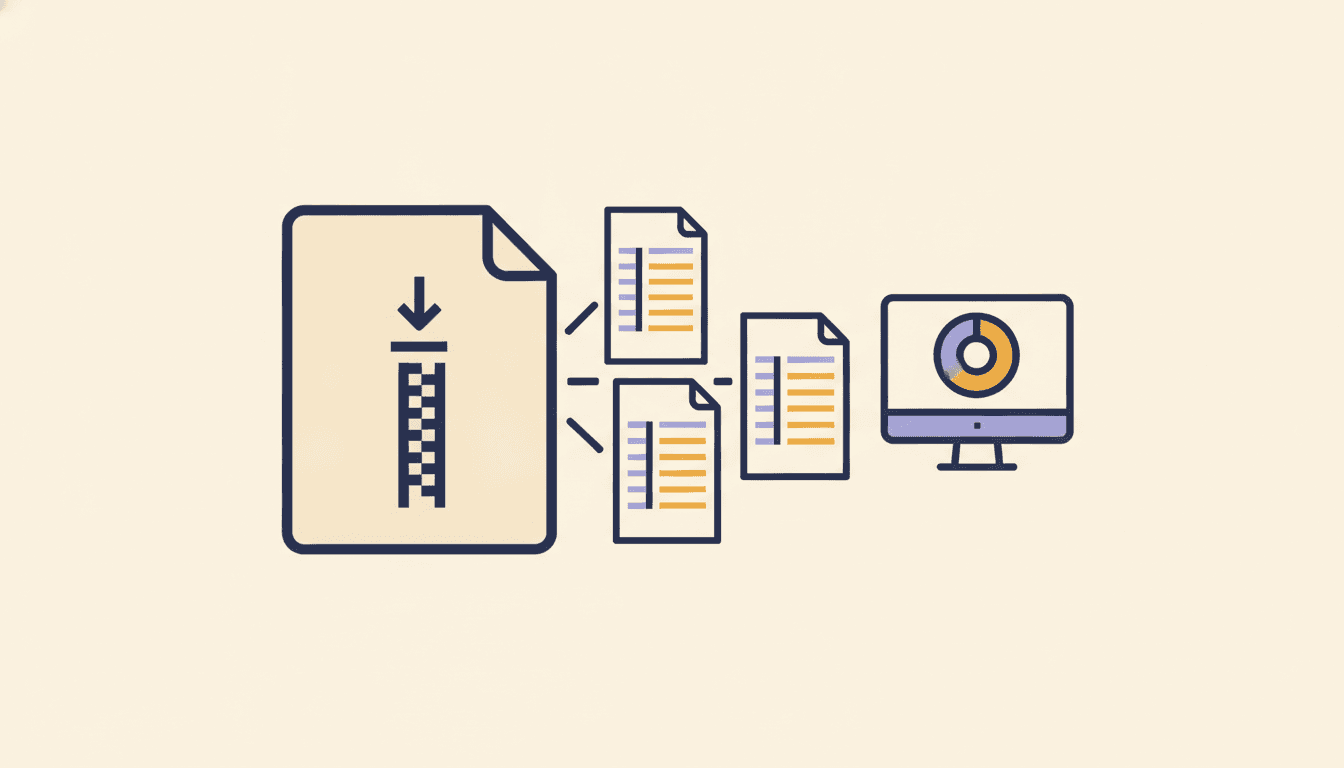
Amazon keeps a complete record of everything you have ever ordered. Getting your hands on it used to be one click. Today it takes a request, two emails, and a little patience, but it still works, and it is still the only way to see your whole purchase history in one place.
This guide covers how to download it, what is inside, and what to do with the files once you have them.
The old "Download order reports" button is gone
If you have done this before, you may remember Your Account → Download order reports, where you picked a date range and got a CSV. Amazon removed that page in 2023. It has been replaced by a privacy-style data request that returns a ZIP of everything instead of a date range.
Step 1: Request your data
- Sign in to Amazon on a computer. Use the same country site you shop on: amazon.com, amazon.ca, amazon.co.uk, and so on
- Open Your Account, then Manage your data (under the Privacy section), then Request your data
- From the dropdown, choose Your orders. You can also choose Request all your data, but the orders option is smaller and arrives faster
- Click Submit Request
Step 2: Confirm the request by email
Amazon immediately sends an email with a Confirm data request button. Nothing happens until you click it. If it is not in your inbox within a couple of minutes, check the promotions or spam folder.
Step 3: Download the ZIP
A second email, titled something like "Your data is ready", arrives once Amazon has assembled the files. For orders alone this is usually minutes, sometimes a few hours. Click Download data, then download the ZIP labelled Your Orders.
The link expires, so download it as soon as you see the email.
While you wait for Amazon's email
Amazon can take anywhere from minutes to a few hours. Set up AmazaSpend now, so the ZIP has somewhere to go the moment it arrives. Once your orders are in, you can:
Set up AmazaSpend while you wait →
- Sort every order into a category, automatically. No tagging hundreds of rows by hand
- See it all on one screen: spend by month, by category, and essential vs impulse
- Sort, search, and filter every order by date, price, item, or category
7-day free trial. Never asks for your Amazon password.
What is inside the ZIP
Open it and you will find a handful of CSV files. The ones that matter:
- Order History is the big one: one row per item, with the order date, product name, quantity, unit price, shipping, tax, and the total you paid
- Refund Details lists every refund Amazon issued you, with the amount and date
- Returns Status shows each return, its reason, and where it is in the process
- Replacement Orders tracks items Amazon replaced rather than refunded
There is no summary sheet. No totals by month, no categories, no "here is what you spent last year". It is raw data, one item at a time.
Option A: Open it in a spreadsheet
Open Order History in Excel or Google Sheets and you can do the basics yourself:
- Sort by order date to see your most recent purchases
- Sum the total column to get your all-time spend
- Add a month column and build a pivot table for monthly totals
- Add a category column and tag each row by hand
Steps 1 to 3 take about ten minutes. Step 4 is the one that stops most people, because a year of orders is often several hundred rows.
Option B: Drop the ZIP into AmazaSpend
You do not need to unzip anything. Upload the whole ZIP and AmazaSpend reads the order history, refunds, and returns files for you.
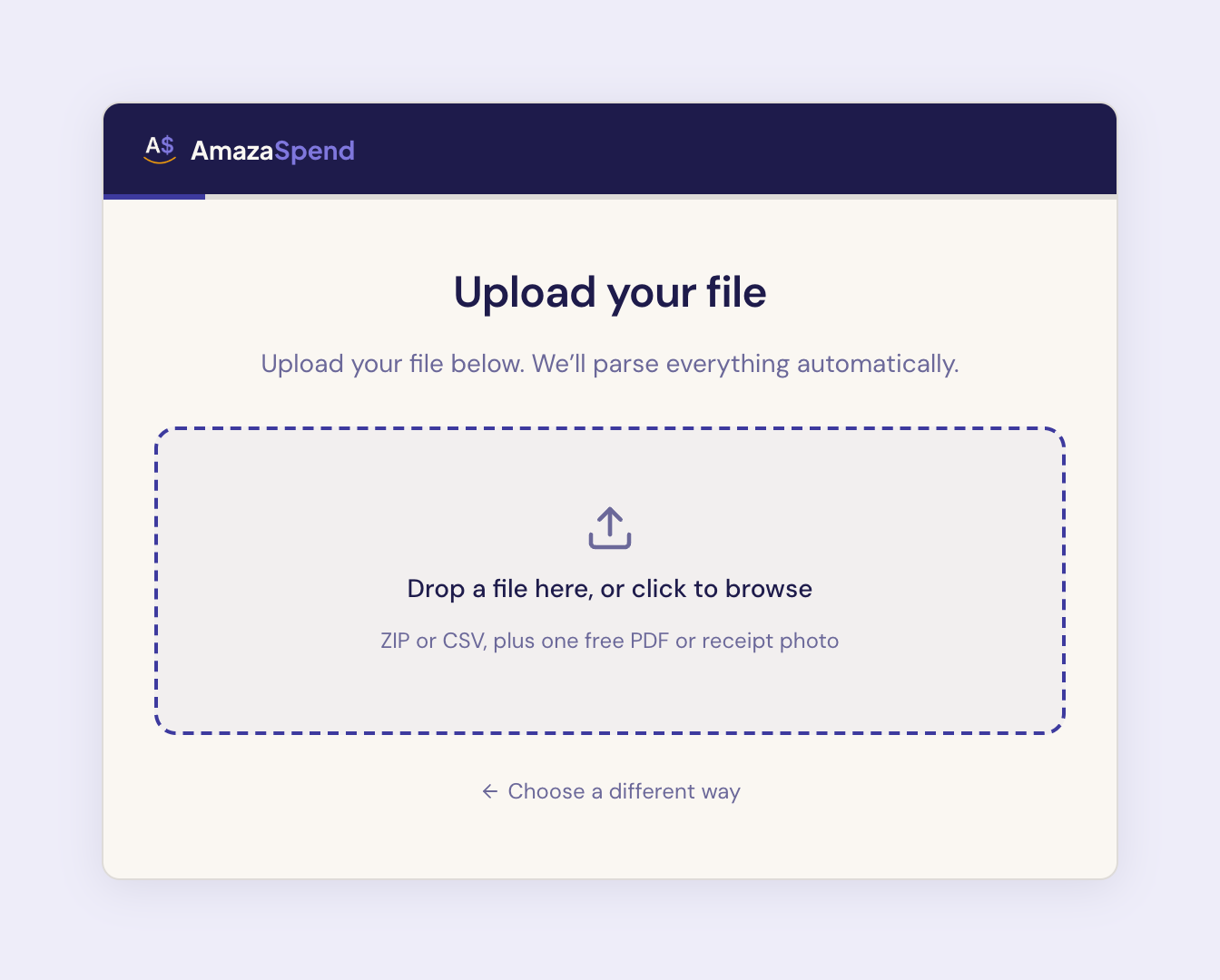
Once it is in, the part that stops most people in a spreadsheet is already done:
- Every item sorted into a category, from household to electronics to pet supplies, automatically. Change any category in a click, or many at once
- Every item tagged as an essential or an impulse buy
- All your orders in one list you can sort by date, price, item, or category, search by product name, and filter down to a single category
- Spend by month and by category, with your monthly average and your total for any date range
- Returns and refunds matched back to the orders they came from
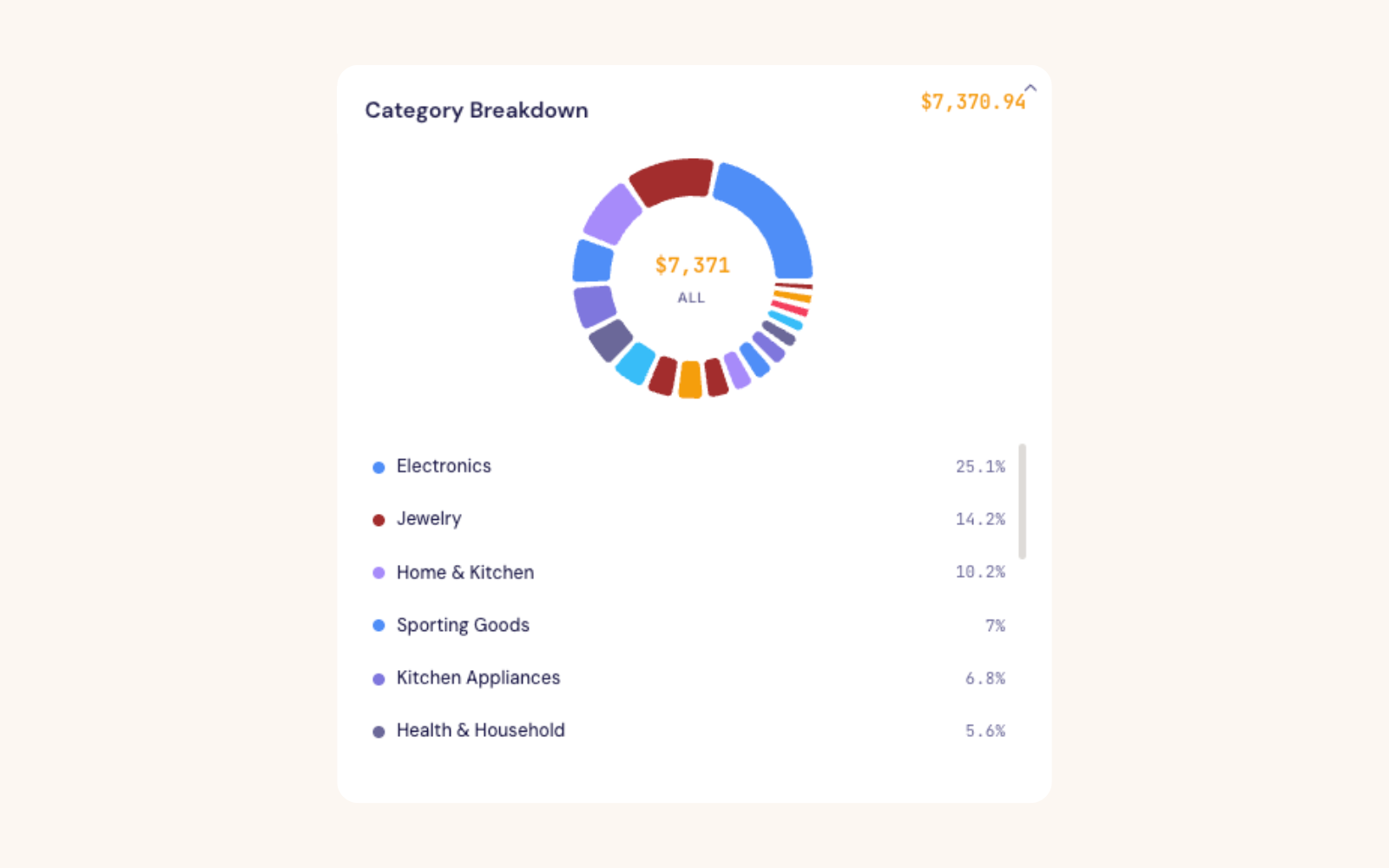
Pro shows your full history across every view, and it starts with a 7-day free trial.
Keeping it current
The data request is a snapshot. Next month's orders will not be in it. You can repeat the request whenever you want an update, or install the AmazaSpend browser extension, which reads the order pages you already visit on Amazon and keeps your dashboard current without any exports at all. It is available for Chrome, Edge, and Firefox.
A note on privacy
The ZIP is your data, and it is worth treating it that way. It contains your name, addresses, and everything you have bought. Store it somewhere private, and only upload it to services you trust. AmazaSpend is read-only, never asks for your Amazon password, and you can delete your data at any time.
Your whole Amazon history, sorted
Upload the ZIP as it is. Every order comes back in a category, in one list you can sort, search, and filter, with your monthly and category totals on the dashboard.
Upload my Amazon order history →7-day free trial. Cancel anytime.