
Ask most people how much they spend on Amazon in a month and you get a guess. Usually a low one. Amazon shows you a list of orders, one at a time, and never adds them up for you. Your credit card statement is not much better: a dozen lines that all just say "Amazon".
Here is how to get the real number, and what to do with it once you have it.
Why you cannot see it on Amazon
Your Orders page is built for finding a package, not for understanding your spending. It filters by "past 3 months" or by year, it shows each order as a separate card, and there is no total anywhere. If you want to know what last month cost you, you would have to open every order and add them up by hand.
The good news is that Amazon does keep the full record. You just have to ask for it.
Step 1: Request your order history from Amazon
Start by requesting your export; Amazon needs time to prepare it:
- Sign in to Amazon and open Your Account → Manage your data → Request your data
- Choose Your orders, then click Submit Request
- Amazon emails you a confirmation right away. Click Confirm data request
- A second email arrives, usually within the hour, with a Download data link. Download the ZIP for Your Orders
That ZIP holds every order you have ever placed: the date, every item, what you paid, your returns and refunds.
Step 2: Turn the ZIP into a monthly total
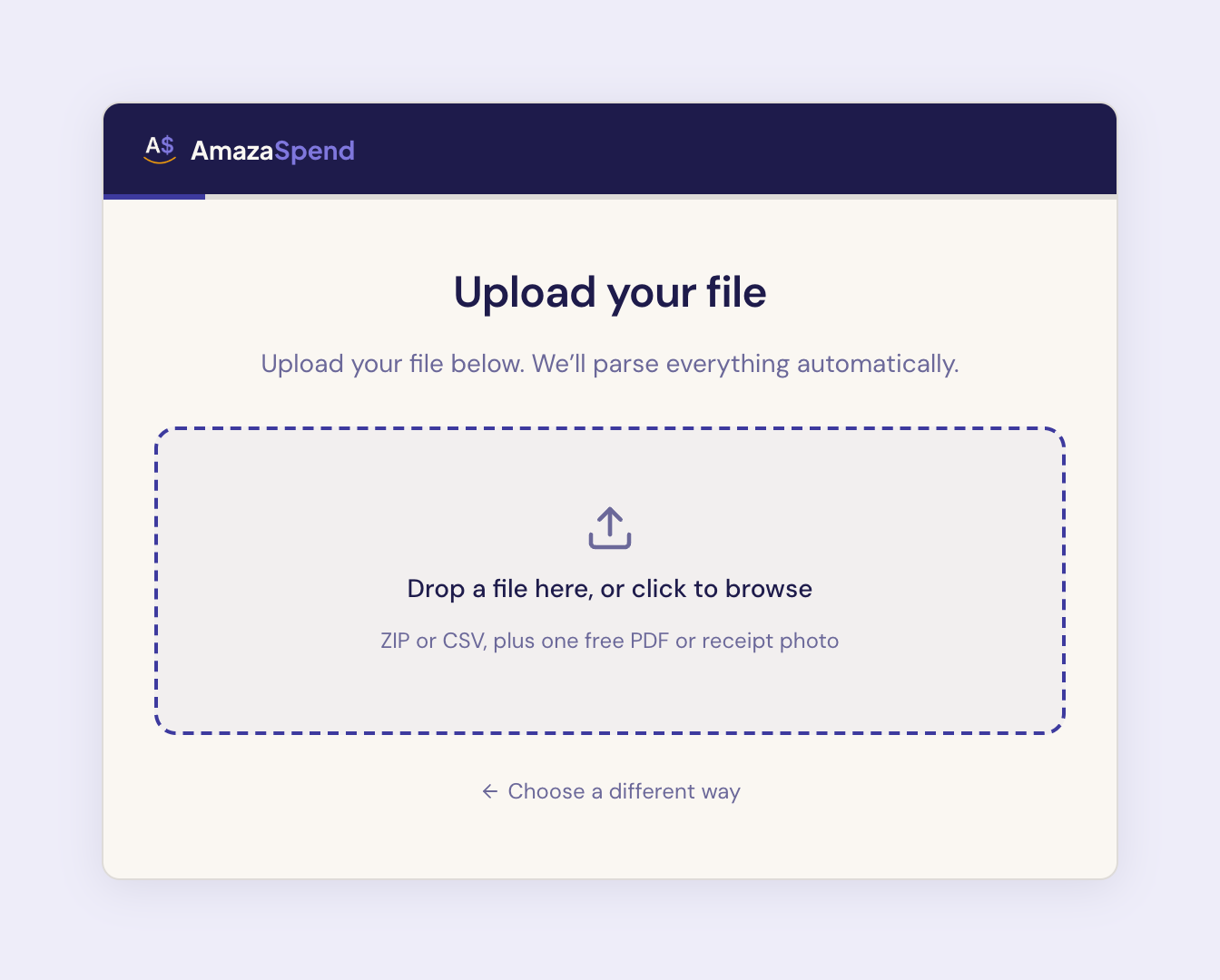
Drop the ZIP straight into AmazaSpend. There is nothing to unzip and nothing to format. It reads your order history and returns, then builds the dashboard for you.
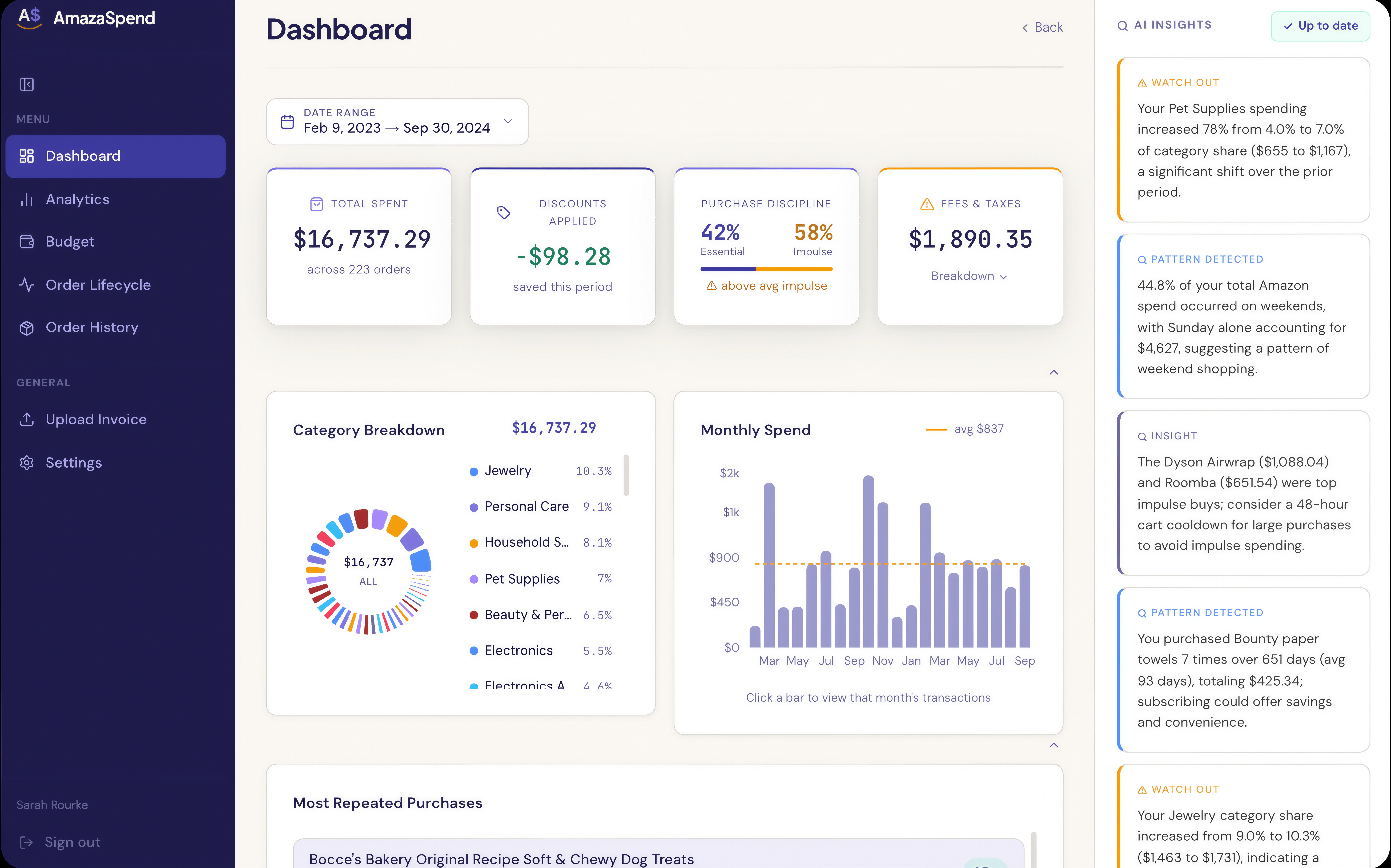
The first thing you see is the number you came for: Total Spent, with the order count underneath it, for whatever date range you pick.
Step 3: Read your monthly spend chart
Right under the totals is the Monthly Spend chart. One bar per month, with a dashed line showing your average. This is the view that answers the real question, because a single month can lie to you.
A few things to look for:
- Your average line. That is your real monthly Amazon number, the one to compare against your budget. In the example above it is about $837 a month.
- The tall bars. November and December are almost always the highest. Back-to-school and Prime Day show up for a lot of people too.
- The quiet months. If your low months are still well above what you expected, that is your baseline creeping up, not a one-off.
Click any bar and you get that month's orders listed out, so a surprising month is never a mystery for long.
Step 4: Change the date range to get your yearly total
The date range picker at the top of the dashboard controls every number on the page. Set it to a full calendar year and Total Spent becomes your yearly Amazon total. Set it to the last 12 months and you get a rolling figure that is not skewed by the holidays.
Most people do this once and never guess again.
What a "normal" month looks like
There is no universal right number, but there are patterns we see over and over:
- Households that buy their essentials on Amazon (paper goods, pet food, cleaning supplies, personal care) usually land between $300 and $600 a month, before the holidays
- The average is almost always higher than people guess, because small orders add up in a way that big ones do not
- Discounts help less than you think. The Discounts Applied card shows what coupons and promotions actually saved you, and it is usually a small share of the total
The number itself is not good or bad. What matters is that you know it, and that next month you can see whether it moved.
The spreadsheet way, for completeness
If you would rather do it by hand, the order history ZIP contains a CSV you can open in Excel or Google Sheets. Add a column for the month, use a pivot table to sum the order totals by month, and chart it. Budget about an hour the first time, and remember to redo it every month.
AmazaSpend processes your imported orders within minutes, keeps it current, and adds the category and impulse breakdowns on top.
See your monthly Amazon total with AmazaSpend →